Orbot Your Twitter!
By n8fr8 · May 2, 2012
In some ways, Twitter is the perfect application to run over the Tor network. It works with small bits of data, it is asynchronous, works naturally in a “store and forward” queue model, and in general, has a decent amount of default security built-in through HTTP/S support and OAuth. Compared to the problem-child of the open web, which often involves large websites, streaming video, flash embeds, and malicious javascript, Twitter is a nearly perfect candidate for use over a secure, anonymous (but sometimes high latency) network. Add to the fact that Twitter is often blocked or monitored in many countrieswho do not care for free speech and human rights, and it becomes almost a necessity that you use it with a service like Tor.
WARNING AND DISCLAIMER: Twitter for Android is proprietary, closed-source software. Details of the implementation of proxy support have not been publicly disclosed or audited by a third-party at this time. In particular, resolution of hostnames via DNS may not be properly routed through Tor (this is a common issue with proxied software). In addition, through other permissions that Twitter for Android may have you on your device, there may be a strong ability to correlate identity between your registered Google Account and your activities on Twitter.
Until recently, in order to run Twitter for Android through Tor for Android, aka Orbot, you would need to root your device, or deal with complex proxy settings. However, as of last week, Twitter became one of the first and only major apps (aka 100M+ installs!) to add direct proxy support into their app, in a very easy to find and activate way.
UPDATE June 13, 2012: After a recent audit, we now recommend turning off the “Sync Data” option through Twitter’s Settings menu, under your registered Twitter account. This will stop push notifications from being sent, which are currently not handled by Orbot/Tor.
- Install and activate Orbot, open Twitter, tap the gear icon on the home screen.
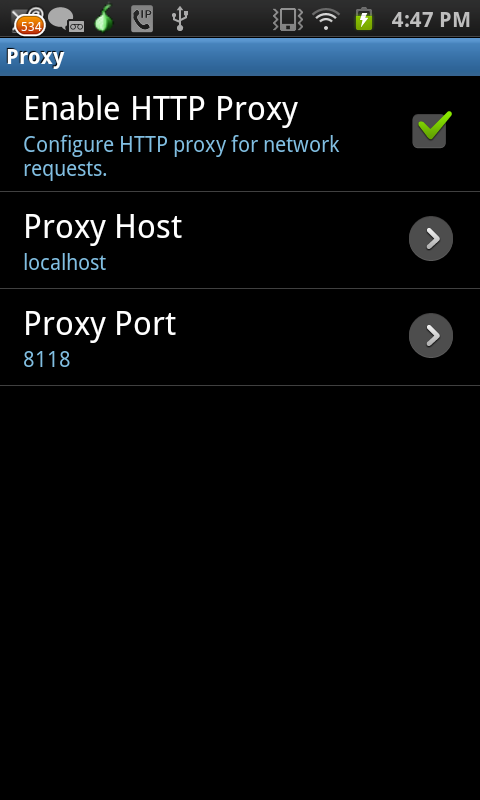
- Check the “proxy” box, enter ‘localhost’ and ‘8118’.
- Open your account settings, and disable the “Sync Data” option to stop push notifications which cannot be proxied through Orbot/Tor.
See the screenshots below for a full walkthrough, and please spread the word to those in need.
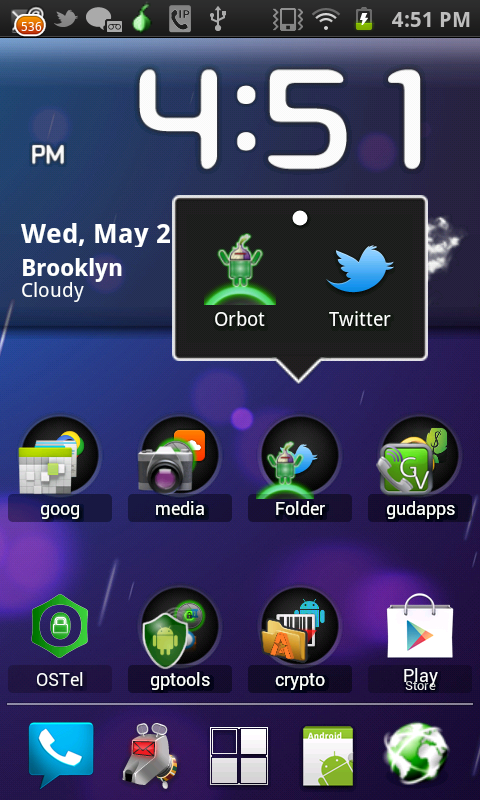
<dd class='wp-caption-text gallery-caption' id='gallery-7-2047'>
  Orbot and Twitter now work together easily, thanks to new simple proxy settings feature in Twitter for Android
</dd>
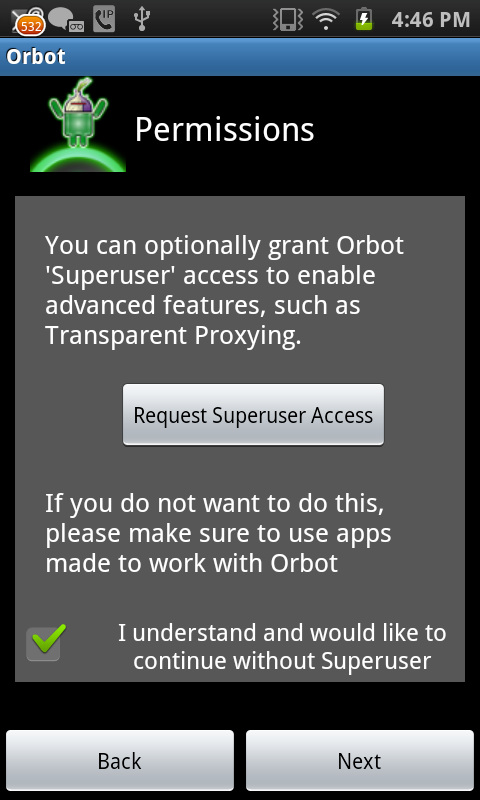
<dd class='wp-caption-text gallery-caption' id='gallery-7-2042'>
  When you setup Orbot, your device does not need root or “superuser” access in order to work with Twitter, or with other apps like Gibberbot (Chat) or ORWeb (safe web access)
</dd>
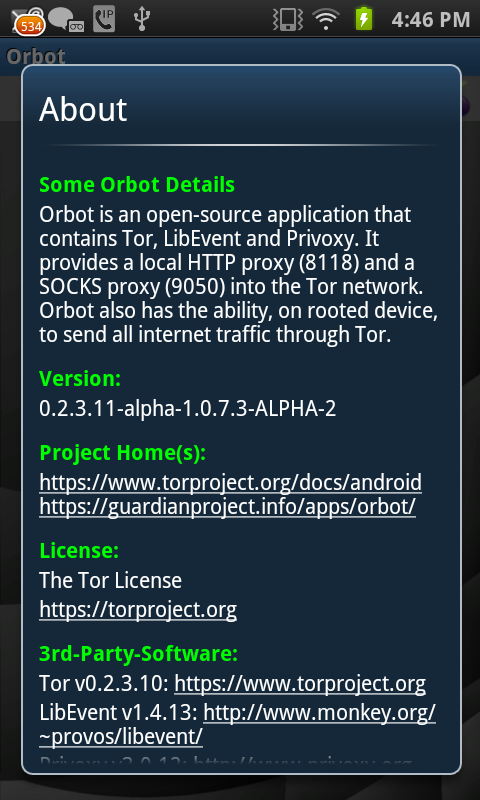
<dd class='wp-caption-text gallery-caption' id='gallery-7-2043'>
  Orbot by default provides an HTTP proxy server on “localhost” and port 8118
</dd>
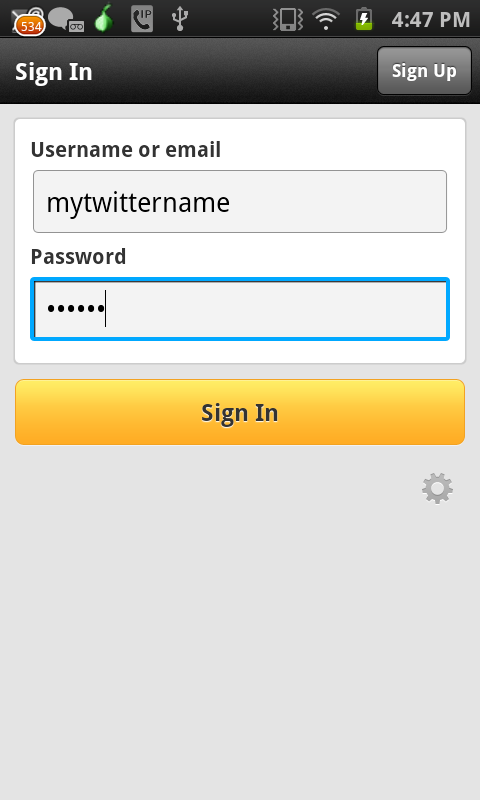
<dd class='wp-caption-text gallery-caption' id='gallery-7-2044'>
  In the Twitter app account sign in screen, click the small gear icon to open proxy settings
</dd>
<dd class='wp-caption-text gallery-caption' id='gallery-7-2045'>
  Enable the proxy, set Proxy Host to ‘localhost’ and Proxy Port to ‘8118’
</dd>
<dd class='wp-caption-text gallery-caption' id='gallery-7-2046'>
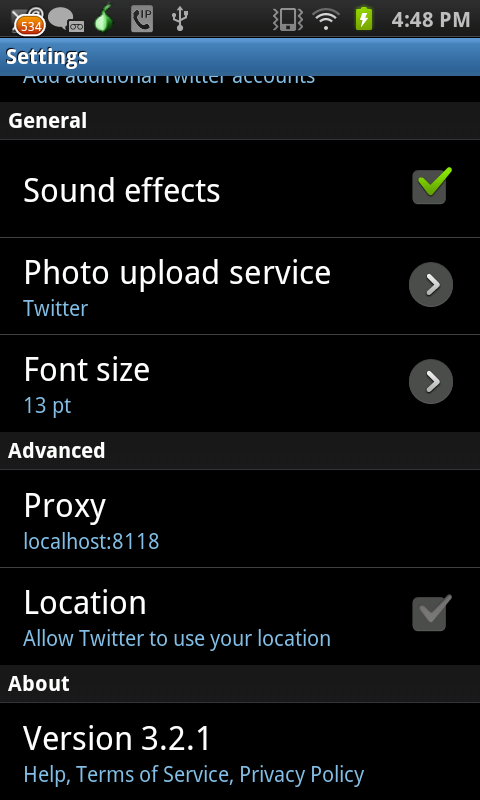
  You can also modify Proxy settings in the app via Menu->Settings
</dd>
<dd class='wp-caption-text gallery-caption' id='gallery-7-2054'>
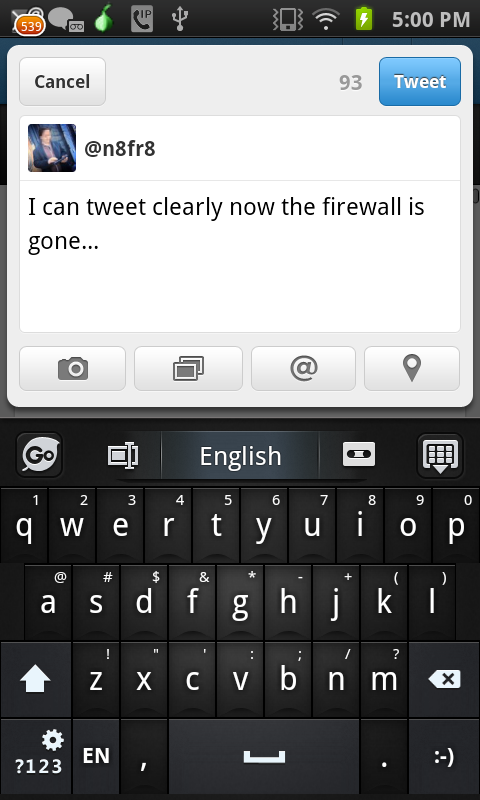
  You can use the app just the same as before, but now through Tor!
</dd>
<dd class='wp-caption-text gallery-caption' id='gallery-7-2055'>
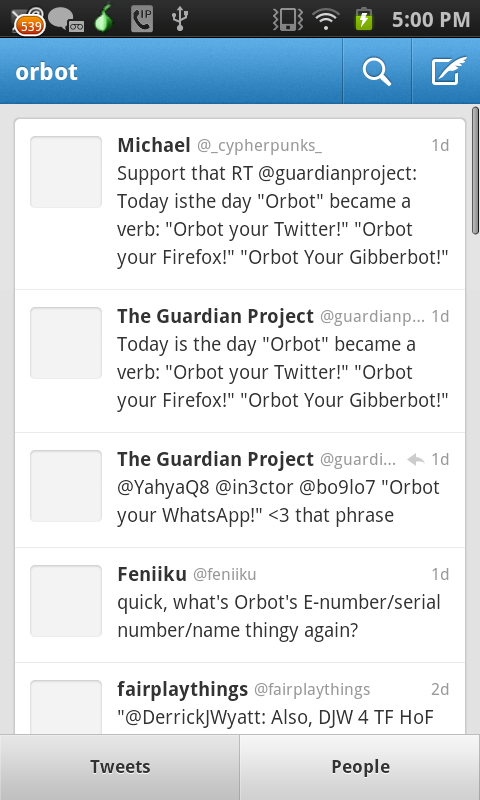
  With searches, you may need to try a few times for them to go through
</dd>

<dd class='wp-caption-text gallery-caption' id='gallery-7-2056'>
  #OrbotYourTwitter!
</dd>
Learn more and install apps
- Twitter for Android: Google Play
- Orbot: Tor for Android: Google Play or direct download via TorProject.org
- Learn more about how Tor works or just watch the video below!